Quick answer
In my case, the shared folder started working immediately after I ran this command in Administrator PowerShell:
Set-SmbClientConfiguration -RequireSecuritySignature $false -ForceThat result showed that the Windows SMB client’s signing requirement was involved in the failure path. Because I did not capture the Windows 10 host’s SMB configuration, it does not prove the exact server-side cause.
🟥 <WARNING>
This command changes the Windows SMB client’s outbound signing requirement; it does not turn off signing for every SMB session. Use it only as the final compatibility test in STEP 9, not as a general first fix.
Jump to STEP 9 → · Read the security note →
🟦 <GUIDE>
You do not need to read everything. Start at STEP 1. Click YES to move forward. Click NO to jump directly to the matching fix. After applying a fix, confirm that the failed condition is cleared, then continue with the next relevant STEP.
Start at STEP 1 → · Open the fix section →
🟨 1. Find the first failed test
Treat this like a decision path, not a checklist. The first NO is usually more useful than the final error message. Do not treat System error 3227320323 by itself as proof of an SMB-signing problem. Replace 192.168.0.4 with the IP address of your shared PC.
| STEP | TEST | YES | NO |
|---|---|---|---|
| STEP 1 | Are you targeting the correct PC and share? | ✅ Continue to STEP 2 → | ❌ Fix the host or share → |
| STEP 2 | Can this PC reach the shared PC? | ✅ Continue to STEP 3 → | ❌ Check the network path → |
| STEP 3 | Is SMB port 445 reachable? | ✅ Continue to STEP 4 → | ❌ Check firewall / SMB server → |
| STEP 4 | Is the existing SMB session list clear? | ✅ Continue to STEP 5 → | ❌ Remove the stale session → |
| STEP 5 | Is the Workstation service running? | ✅ Continue to STEP 6 → | ❌ Start or repair Workstation → |
| STEP 6 | Have you recorded the SMB client security settings? | ✅ Continue to STEP 7 → | ❌ Record the settings first → |
| STEP 7 | Are saved credentials clear of old entries for this server? | ✅ Continue to STEP 8 → | ❌ Remove only the stale credential → |
| STEP 8 | Can Windows create a direct SMB session? | ✅ Check share permissions → | ❌ If it is 3227320323, test STEP 9 → |
| STEP 9 | Does removing the SMB signing requirement restore access? | ✅ See why this mattered → | ❌ Restore signing and check other causes → |
STEP 1
Are you targeting the correct PC and share?
ipconfig
hostname
net share
Why this test? A changed local IP or missing share can look like a deeper SMB failure.
❌ NO — STOP HERE
The IP changed, the PC name is wrong, or the intended share is missing.
STEP 2
Can this PC reach the shared PC?
ping 192.168.0.4Why this test? This checks basic IP reachability before we blame SMB.
❌ NO — STOP HERE
The target does not reply. Ping alone is not final proof, so STEP 3 still matters.
STEP 3
Is SMB port 445 reachable?
Test-NetConnection -ComputerName 192.168.0.4 -Port 445Why this test? SMB file sharing normally uses TCP 445. This test is more specific than ping.
STEP 4
Is the existing SMB session list clear?
net useWhy this test? An old connection can force Windows to reuse the wrong account or session.
❌ NO — STOP HERE
A stale or conflicting connection to the same server is listed.
STEP 5
Is the Workstation service running?
sc.exe query lanmanworkstationWhy this test? Windows needs the Workstation service to act as an SMB client.
❌ NO — STOP HERE
The service is stopped or reports a dependency problem.
STEP 6
Have you recorded the SMB client security settings?
Get-SmbClientConfiguration | Select RequireSecuritySignature, EnableInsecureGuestLogonsWhy this test? You need the original values before testing a security-related workaround.
❌ NO — STOP HERE
You do not know the original values or the command does not return them.
STEP 7
Are saved credentials clear of old entries for this server?
cmdkey /listWhy this test? Windows can silently reuse a saved username or password for the target.
STEP 8
Can Windows create a direct SMB session?
net use \\192.168.0.4\ipc$Why this test? This tests the SMB session directly, without relying on File Explorer. The example uses the IP address because that matched the real incident; for ongoing access, prefer the computer name when available.
✅ YES — PASS
The command completes successfully. Basic SMB connectivity works.
❌ NO — STOP HERE
Windows returns a System error number. Write down the exact number.
STEP 9
Does removing the SMB signing requirement restore access?
Set-SmbClientConfiguration -RequireSecuritySignature $false -ForceWhy this test? This is a compatibility test after the earlier network, service, session, and credential checks have passed.
❌ NO — STOP HERE
Nothing changes. SMB signing is probably not the main cause.
🟩 2. What happened on my PC
This is the actual Windows 11 → Windows 10 case behind this guide. I only mark a result as confirmed when I preserved or directly observed it during troubleshooting.
| STEP | MY RESULT | STATUS | RELATED |
|---|---|---|---|
| STEP 1 | Target PC was 192.168.0.4; detailed hostname/share output was not preserved. | Partially recorded | Review STEP 1 → |
| STEP 2 | Ping worked. | PASS | See the result → |
| STEP 3 | The TCP 445 test was recommended later, not captured during the original incident. | Not recorded | Why STEP 3 matters → |
| STEP 4 | net use showed no entries. | PASS | See the result → |
| STEP 5 | Workstation stopped and restarted successfully, but the share still failed. | PASS | See the result → |
| STEP 6 | The exact pre-change SMB client values were not preserved. | Not recorded | Review STEP 6 → |
| STEP 7 | The original cmdkey output was not preserved. | Not recorded | Review STEP 7 → |
| STEP 8 | net use \\192.168.0.4\ipc$ returned System error 3227320323. | FAILED | See the failure → |
| STEP 9 | After RequireSecuritySignature was set to False, shared-folder access returned. | RESOLVED | See the change → |
The initial symptom
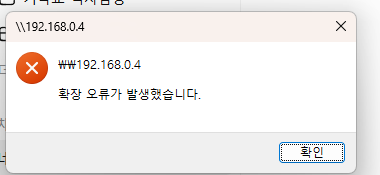
File Explorer could not open \\192.168.0.4 and Windows displayed an extended error. The target PC was still reachable, so the next step was to separate basic network reachability from an SMB-session failure.
STEP 2
The PC was reachable
Ping replied normally. That told me the target PC was still reachable at the IP layer, so the problem was likely higher in the connection stack.
ping 192.168.0.4STEP 4
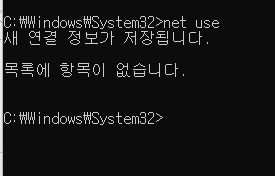
There was no stale net use session
The connection list contained no entries. A simple leftover mapped-session conflict became less likely.
net use↩ Compare with STEP 4 · Open STEP 4 fix →
STEP 5
Restarting Workstation did not solve it
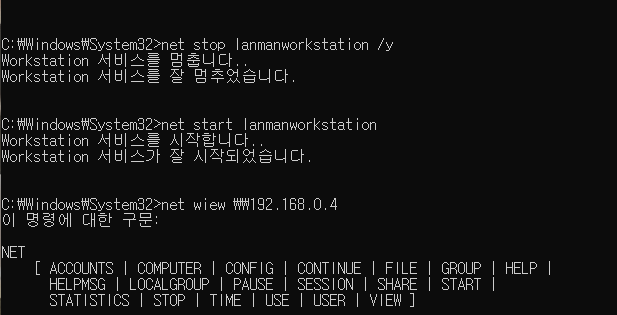
The Workstation service stopped and started successfully. The shared folder still failed afterward, so the service itself was not the final fix.
net stop lanmanworkstation /y
net start lanmanworkstation
↩ Compare with STEP 5 · Open STEP 5 fix →
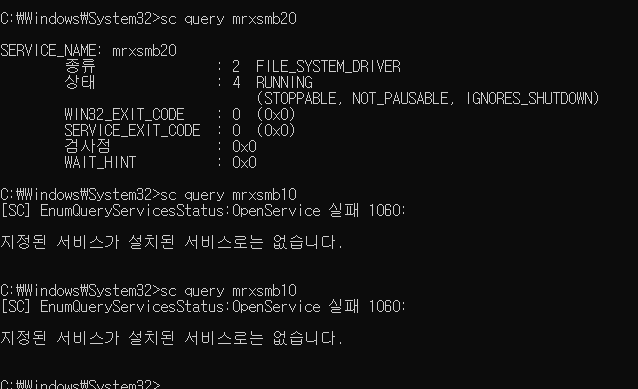
Supporting check: SMB redirector state
I also checked the SMB redirector components. The modern SMB redirector was present, while the legacy SMB1-era component was not installed. SMB1 was not enabled as a workaround.
STEP 8
The direct SMB session exposed the decisive error
Testing IPC$ removed File Explorer from the equation. Windows returned System error 3227320323.
net use \\192.168.0.4\ipc$

System error 3227320323 has occurred.STEP 9
The signing-requirement test restored access
After the client no longer required SMB signing for outbound connections, the share connected. That strongly narrowed the failure path to the signing requirement or a related authentication-compatibility condition. Because the Windows 10 host configuration was not captured, this is strong evidence, not proof of the exact server-side cause.
Set-SmbClientConfiguration -RequireSecuritySignature $false -Force🟦 3. Fix the first NO
Do not apply every fix. Open the STEP that produced your first NO, make the smallest necessary change, confirm that condition is cleared, and then continue with the next relevant test.
| FAILED AT | DO THIS FIRST | THEN |
|---|---|---|
| STEP 1 | Use the correct IP/share or create the missing share. | Continue to STEP 2 → |
| STEP 2 | Verify power, IP, LAN/Wi-Fi, and subnet. | Continue to STEP 3 → |
| STEP 3 | Check the Server service and File and Printer Sharing firewall rules on the host. | Continue to STEP 4 → |
| STEP 4 | Delete the stale connection to this server. | Continue to STEP 5 → |
| STEP 5 | Start Workstation and inspect dependencies if it fails. | Continue to STEP 6 → |
| STEP 6 | Read and save the current SMB client settings. | Continue to STEP 7 → |
| STEP 7 | Delete the saved credential for the target IP or computer name. | Continue to STEP 8 → |
| STEP 8 | If IPC$ works, inspect the specific share and permissions. If it fails, use the exact error number. | Continue to STEP 9 → |
| STEP 9 | Set RequireSecuritySignature back to True and investigate another cause. | Security / rollback → |
🔧 FIX · STEP 1
Fix the target PC, IP address, or share name
If DHCP changed the local IP, update the UNC path. If net share does not list the folder, create or restore the share before doing deeper SMB troubleshooting.
After the fix: Confirm that the expected host and share are visible, then continue to STEP 2.
🔧 FIX · STEP 2
Check the basic network path
A failed ping can be caused by routing, the target being offline, or ICMP firewall rules. Do not stop here—TCP 445 in STEP 3 is the more important SMB-specific test.
After the fix: Once basic connectivity is restored—or if ping alone is blocked—continue to STEP 3 and test TCP 445.
🔧 FIX · STEP 3
Restore TCP 445 access
If TCP 445 is unreachable, changing SMB signing on the client is premature. First make the SMB service reachable.
sc.exe query lanmanserverAfter the fix: Run Test-NetConnection again. Continue only when TcpTestSucceeded is True.
🔧 FIX · STEP 4
Remove only the conflicting SMB session
Windows can reject a second connection to the same server when another credential context is already in use.
net use \\192.168.0.4\ipc$ /deleteAfter the fix: Confirm that the conflicting entry is gone, then continue to STEP 5.
🔧 FIX · STEP 5
Start or repair the Workstation service
Without the Workstation service, Windows cannot operate normally as an SMB client.
sc.exe start lanmanworkstationsc.exe qc lanmanworkstationAfter the fix: Confirm STATE : 4 RUNNING, then continue to STEP 6.
🔧 FIX · STEP 6
Record the security baseline before changing it
If RequireSecuritySignature is already False, the STEP 9 command will not change that setting. If insecure guest logons are already enabled, do not weaken the client further without understanding why.
After the fix: Once the original values are recorded, continue to STEP 7.
🔧 FIX · STEP 7
Remove only the stale target credential
Do not clear every Windows credential. In cmdkey /list, identify the entry that belongs to the affected SMB server, then replace TARGET_NAME_FROM_CMDKEY_LIST with that exact target name.
cmdkey /delete:TARGET_NAME_FROM_CMDKEY_LISTAfter the fix: Reconnect with the intended account, then continue to STEP 8.
🔧 FIX · STEP 8
Use the direct-session result to choose the next branch
A successful IPC$ session means the basic SMB session is working. If only one shared folder still fails, focus on the share name, share permissions, NTFS permissions, and the account used for that share. If IPC$ returns System error 3227320323 after the earlier checks passed, continue to STEP 9.
After the fix: After correcting the share or permission issue, test the exact share path again.
🔧 FIX · STEP 9
Restore signing if the compatibility test does not help
If access does not change after the STEP 9 test, SMB signing is unlikely to be the main blocker. Check authentication, the server configuration, share permissions, NTFS permissions, or NAS/Samba compatibility instead.
Set-SmbClientConfiguration -RequireSecuritySignature $true -ForceAfter the fix: With the signing requirement restored, return to the SMB session test and investigate another cause.
🟥 4. Security and rollback
The final command changes a security requirement, so the working state is not automatically the best permanent state.
RequireSecuritySignature controls whether the Windows SMB client requires signing for outbound SMB connections. If a compatibility test works only after that requirement is removed, treat the result as a clue rather than proof of a single root cause. Prefer fixing authentication or server compatibility so that signing can be required again.
Set-SmbClientConfiguration -RequireSecuritySignature $true -ForceSafer long-term state: Use an authenticated account and password, keep SMB1 disabled, verify share and NTFS permissions, prefer the computer name over an IP address for ongoing connections when practical, and restore the signing requirement whenever the environment supports it.
FAQ
Does System error 3227320323 always mean SMB signing?
No. Microsoft documents this error as one symptom that can appear when newer SMB signing requirements conflict with guest-style SMB access, but the error number alone does not prove the exact server-side cause. Use the diagnostic flow to find the first failed layer.
Start the diagnostic flow →
Why can ping work while the shared folder still fails?
Ping tests basic IP communication. SMB still depends on TCP 445, Windows services, authentication, permissions, and SMB security settings.
Check TCP 445 in STEP 3 →
What if IPC$ works but the shared folder does not?
That points away from basic SMB connectivity and toward the specific share name, share permissions, NTFS permissions, or account.
Open the STEP 8 branch →
Should I enable SMB1?
Not for this case. Use the modern SMB path and diagnose the actual failure instead of adding an older protocol.
Return to the diagnostic flow →
Should RequireSecuritySignature stay False permanently?
Prefer not to treat it as the default end state. If it restored access, use that result to identify the compatibility problem and then aim for an authenticated configuration that can use signing.
Read the security and rollback section →
Conclusion
The useful part of this case was not just one PowerShell command. The important result was finding the first layer that failed. Use the YES/NO path, open the matching fix, confirm that the failed condition is cleared, and then continue to the next relevant STEP.